Introduction
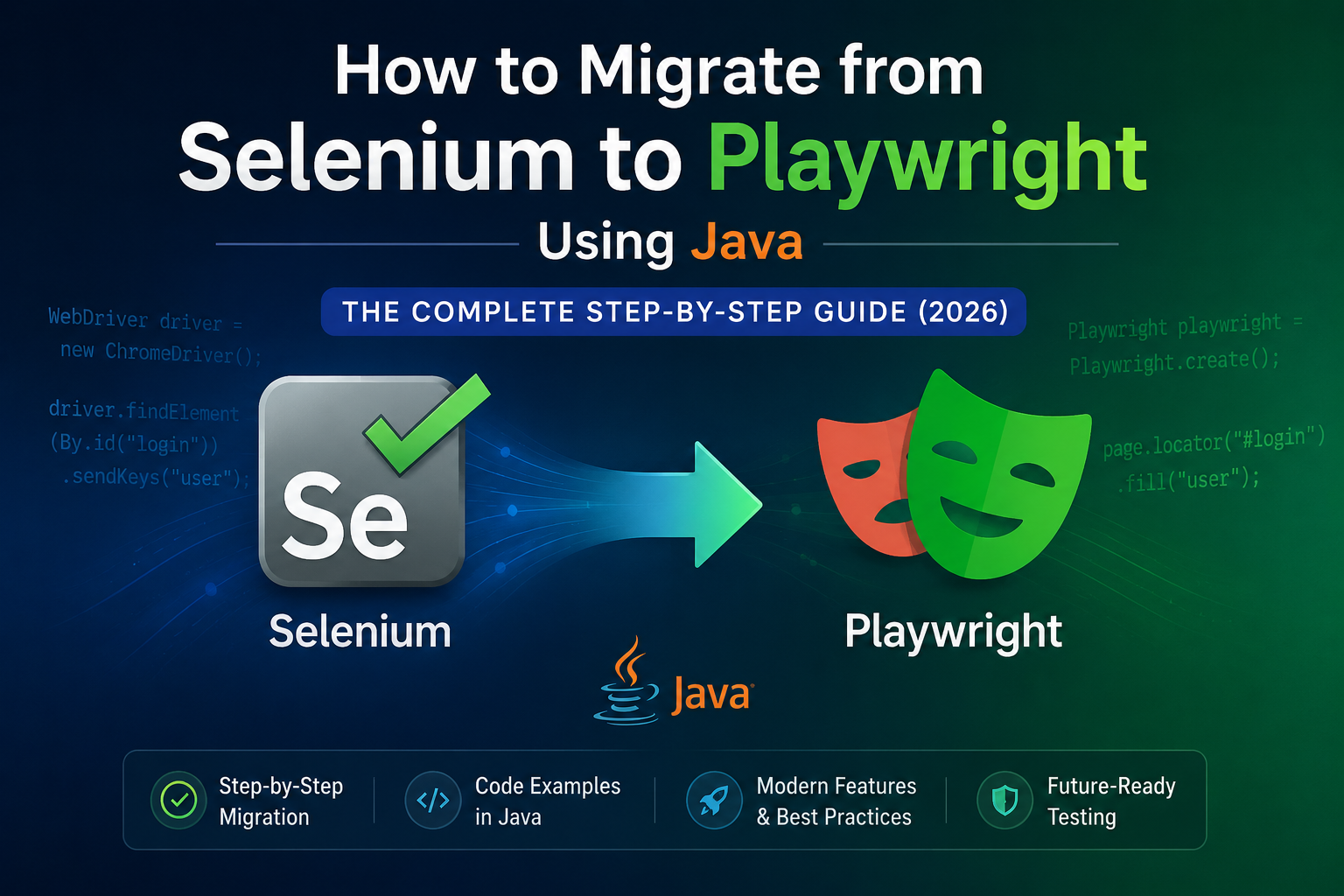
Are you a Java developer looking to migrate from Selenium to Playwright Java but not sure where to begin?
If yes, you are in the right place.
In 2026, most QA teams that use Java are now seriously considering moving from Selenium WebDriver to Playwright Java. The reasons are clear — faster execution, automatic waits, and better debugging tools.
I work as an automation testing engineer and use Java daily for test automation. In this guide, I will show you exactly how to migrate from Selenium to Playwright Java with real, working code examples that you can use in your project right away.
New to this topic? First check out our complete overview — How to Migrate from Selenium to Playwright — Complete Guide (All Languages)
Let’s get started!
Why Java Developers Should Migrate from Selenium to Playwright Java
Before we jump into the steps, let us understand why migrating from Selenium to Playwright Java makes sense for Java teams specifically.
1. Playwright Java is Officially Supported by Microsoft
Playwright Java is not a third-party wrapper — it is officially maintained by Microsoft. This means you get regular updates, bug fixes, and long-term support. Check the official Playwright Java documentation for details.
2. No More WebDriverManager Headaches
In Selenium, managing browser drivers (ChromeDriver, GeckoDriver) was always painful. When you migrate from Selenium to Playwright Java, browser binaries are automatically downloaded and managed. No more WebDriverManager dependency.
3. Auto-Wait Eliminates Flaky Tests
Every Java QA engineer knows the pain of flaky Selenium tests caused by timing issues. When you migrate from Selenium to Playwright Java, automatic waits are built in — Playwright waits for elements to be actionable before interacting with them.
4. Works with TestNG and JUnit
If your Java project already uses TestNG or JUnit, great news — Playwright Java integrates seamlessly with both frameworks. You don’t need to change your entire test structure.
5. Faster Test Execution
Playwright Java tests run significantly faster than Selenium tests because Playwright communicates directly with the browser using the Chrome DevTools Protocol (CDP).
Prerequisites Before You Migrate from Selenium to Playwright Java
Make sure you have these ready:
- ✅ Java JDK 8 or higher installed
- ✅ Maven or Gradle build tool
- ✅ IntelliJ IDEA or Eclipse IDE
- ✅ Basic knowledge of Selenium WebDriver
- ✅ Existing Selenium Java project to migrate
Step-by-Step Guide to Migrate from Selenium to Playwright Java
Step 1: Add Playwright Java Dependency
The first step to migrate from Selenium to Playwright Java is adding the dependency to your project.
For Maven — add to pom.xml:
<dependencies>
    <dependency>
        <groupId>com.microsoft.playwright</groupId>
        <artifactId>playwright</artifactId>
        <version>1.42.0</version>
    </dependency>
    <!-- Keep TestNG or JUnit as you already have -->
    <dependency>
        <groupId>org.testng</groupId>
        <artifactId>testng</artifactId>
        <version>7.9.0</version>
        <scope>test</scope>
    </dependency>
</dependencies>
For Gradle — add to build.gradle:
dependencies {
    implementation 'com.microsoft.playwright:playwright:1.42.0'
    testImplementation 'org.testng:testng:7.9.0'
}
After adding the dependency, run this command once to download browser binaries:
mvn exec:java -e -D exec.mainClass=com.microsoft.playwright.CLI -D exec.args="install"
Step 2: Understand Selenium vs Playwright Java Code Differences
This is the most important step when you migrate from Selenium to Playwright Java. Study this comparison carefully:
| Action | Selenium Java | Playwright Java |
|---|---|---|
| Import packages | import org.openqa.selenium.* | import com.microsoft.playwright.* |
| Launch browser | WebDriver driver = new ChromeDriver() | Browser browser = playwright.chromium().launch() |
| Create page | Not needed | Page page = browser.newPage() |
| Open URL | driver.get("https://example.com") | page.navigate("https://example.com") |
| Find by ID | driver.findElement(By.id("username")) | page.locator("#username") |
| Find by XPath | driver.findElement(By.xpath("//input")) | page.locator("//input") |
| Find by text | Not direct | page.getByText("Login") |
| Click element | .click() | .click() |
| Type text | .sendKeys("text") | .fill("text") |
| Get text | .getText() | .textContent() |
| Explicit wait | new WebDriverWait(driver, Duration.ofSeconds(10)) | Not needed — automatic! |
| Take screenshot | ((TakesScreenshot)driver).getScreenshotAs(OutputType.FILE) | page.screenshot(new Page.ScreenshotOptions().setPath(Paths.get("screenshot.png"))) |
| Close browser | driver.quit() | browser.close() |
Step 3: Write Your First Playwright Java Test
Here is a basic Selenium test and its equivalent Playwright Java test so you can see the difference clearly:
Selenium Java Test (Before Migration):
import org.openqa.selenium.By;
import org.openqa.selenium.WebDriver;
import org.openqa.selenium.chrome.ChromeDriver;
import org.openqa.selenium.support.ui.WebDriverWait;
import org.openqa.selenium.support.ui.ExpectedConditions;
import java.time.Duration;

public class SeleniumLoginTest {
    public static void main(String[] args) {
        System.setProperty("webdriver.chrome.driver", "path/to/chromedriver");
        WebDriver driver = new ChromeDriver();

        driver.get("https://example.com/login");

        WebDriverWait wait = new WebDriverWait(driver, Duration.ofSeconds(10));
        wait.until(ExpectedConditions.visibilityOfElementLocated(By.id("username")));

        driver.findElement(By.id("username")).sendKeys("testuser");
        driver.findElement(By.id("password")).sendKeys("password123");
        driver.findElement(By.id("loginBtn")).click();

        wait.until(ExpectedConditions.titleContains("Dashboard"));
        System.out.println("Login successful!");

        driver.quit();
    }
}
Playwright Java Test (After Migration):
import com.microsoft.playwright.*;

public class PlaywrightLoginTest {
    public static void main(String[] args) {
        try (Playwright playwright = Playwright.create()) {
            Browser browser = playwright.chromium().launch();
            Page page = browser.newPage();

            page.navigate("https://example.com/login");

            // No waits needed — Playwright handles it automatically!
            page.locator("#username").fill("testuser");
            page.locator("#password").fill("password123");
            page.locator("#loginBtn").click();

            page.waitForURL("**/dashboard**");
            System.out.println("Login successful!");

            browser.close();
        }
    }
}
Notice how much cleaner and simpler the Playwright Java code is — no WebDriverManager, no explicit waits, no system properties.
Step 4: Migrate from Selenium to Playwright Java Using TestNG
If your project uses TestNG (which most Java automation projects do), here is how to structure your Playwright Java tests with TestNG:
import com.microsoft.playwright.*;
import org.testng.annotations.*;
import org.testng.Assert;

public class PlaywrightTestNGExample {

    Playwright playwright;
    Browser browser;
    Page page;

    @BeforeClass
    public void setUp() {
        playwright = Playwright.create();
        browser = playwright.chromium().launch(
            new BrowserType.LaunchOptions().setHeadless(false)
        );
        page = browser.newPage();
    }

    @Test
    public void testLogin() {
        page.navigate("https://example.com/login");
        page.locator("#username").fill("testuser");
        page.locator("#password").fill("password123");
        page.getByRole(AriaRole.BUTTON,
            new Page.GetByRoleOptions().setName("Login")).click();

        Assert.assertTrue(page.url().contains("dashboard"),
            "Login failed — not on dashboard page");
    }

    @Test
    public void testPageTitle() {
        page.navigate("https://example.com");
        Assert.assertEquals(page.title(), "Example Domain");
    }

    @AfterClass
    public void tearDown() {
        browser.close();
        playwright.close();
    }
}
Step 5: Use Better Locators After You Migrate from Selenium to Playwright Java
One of the best improvements when you migrate from Selenium to Playwright Java is the new locator strategies. Try to move away from XPath and use these instead:
// Old Selenium way — brittle XPath
driver.findElement(By.xpath("//button[@class='btn btn-primary']"));

// Playwright Java — locate by role (most reliable)
page.getByRole(AriaRole.BUTTON, new Page.GetByRoleOptions().setName("Submit"));

// Playwright Java — locate by visible text
page.getByText("Login");

// Playwright Java — locate by label (great for forms)
page.getByLabel("Email Address");

// Playwright Java — locate by placeholder
page.getByPlaceholder("Enter your email");

// Playwright Java — locate by test ID (best practice)
page.getByTestId("submit-button");
Using getByRole and getByText makes your tests more readable and much less likely to break when the UI changes.
Step 6: Handle Screenshots and Reporting in Playwright Java
When you migrate from Selenium to Playwright Java, capturing screenshots on failure becomes much simpler:
@AfterMethod
public void captureScreenshotOnFailure(ITestResult result) {
    if (ITestResult.FAILURE == result.getStatus()) {
        page.screenshot(new Page.ScreenshotOptions()
            .setPath(Paths.get("screenshots/" + result.getName() + ".png"))
            .setFullPage(true));
        System.out.println("Screenshot saved for failed test: " + result.getName());
    }
}
Playwright Java also supports video recording of test runs:
BrowserContext context = browser.newContext(new Browser.NewContextOptions()
    .setRecordVideoDir(Paths.get("videos/")));
Page page = context.newPage();
// Your test steps here
context.close(); // Video is saved when context closes
Step 7: Run Playwright Java Tests in CI/CD with GitHub Actions
After you migrate from Selenium to Playwright Java, set up your GitHub Actions pipeline with this workflow:
name: Playwright Java Tests
on: [push, pull_request]

jobs:
  test:
    runs-on: ubuntu-latest
    steps:
      - uses: actions/checkout@v3

      - name: Set up JDK 17
        uses: actions/setup-java@v3
        with:
          java-version: '17'
          distribution: 'temurin'

      - name: Install Playwright browsers
        run: mvn exec:java -e -D exec.mainClass=com.microsoft.playwright.CLI -D exec.args="install --with-deps"

      - name: Run Playwright Java tests
        run: mvn test

      - name: Upload screenshots on failure
        if: failure()
        uses: actions/upload-artifact@v3
        with:
          name: screenshots
          path: screenshots/
Common Mistakes Java Developers Make When They Migrate from Selenium to Playwright Java
From my experience, here are the mistakes I see most often:
1. Keeping All Explicit Waits When you migrate from Selenium to Playwright Java, remove your WebDriverWait code. Keeping it makes tests slow without any benefit.
2. Forgetting to Close Playwright Always close Playwright in your @AfterClass or use try-with-resources. Not closing it causes memory leaks.
3. Using Only XPath Locators XPath works in Playwright Java, but it is fragile. Switch to getByRole and getByText wherever possible.
4. Not Using Trace Viewer for Debugging When a test fails in CI, use Playwright’s Trace Viewer to debug it. Enable tracing like this:
context.tracing().start(new Tracing.StartOptions()
    .setScreenshots(true)
    .setSnapshots(true));
// Run your test
context.tracing().stop(new Tracing.StopOptions()
    .setPath(Paths.get("trace.zip")));
Then view it with:
mvn exec:java -e -D exec.mainClass=com.microsoft.playwright.CLI -D exec.args="show-trace trace.zip"
5. Not Reading the Official Docs The Playwright Java documentation is excellent. Read it before starting your migration.
How Long Does It Take to Migrate from Selenium to Playwright Java?
| Project Size | Estimated Time |
|---|---|
| Small (up to 50 test cases) | 1–2 weeks |
| Medium (100–200 test cases) | 3–5 weeks |
| Large (500+ test cases) | 2–3 months (migrate in phases) |
Related Posts You Should Read Next
- 📌 How to Migrate from Selenium to Playwright — Complete Guide (All Languages)
- 📌 Top 20 Selenium Interview Questions & Answers 2026
(Coming soon: Migrate from Selenium to Playwright — Python Guide | JavaScript Guide | .NET Guide)
Final Thoughts
Migrating from Selenium to Playwright Java is one of the best decisions a Java QA team can make in 2026. Cleaner code, automatic waits, faster execution, and better debugging — the benefits are real and immediate.
Start with your smoke test suite, convert your locators, remove unnecessary waits, and you will be surprised how quickly the migration from Selenium to Playwright Java goes.
Have questions about your specific Java project? Drop a comment below — I will be happy to help! 😊
Written by Rajesh — Automation Testing Engineer with hands-on experience in Selenium WebDriver and Playwright Java frameworks.

![Read more about the article Top 20 Pytest Interview Questions with Answers [2025 Guide]](https://www.mrwhotheengineer.com/wp-content/uploads/2025/07/Top-20-Pytest-Interview-Questions-with-Answers-2025-Guide-300x200.png)